

Prerequisites
- A Dify workspace where you can access Plugins in the top-right corner.
- A scaffolded plugin project (see CLI if you haven’t created one yet).
- Python 3.12 and the plugin’s dependencies installed (
pip install -r requirements.txt).
Step 1: Get the Debug URL and Key
Open the Plugins page in Dify and click the debug icon (the small bug icon next to Install Plugin). A dialog shows the remote install host:port and an API key.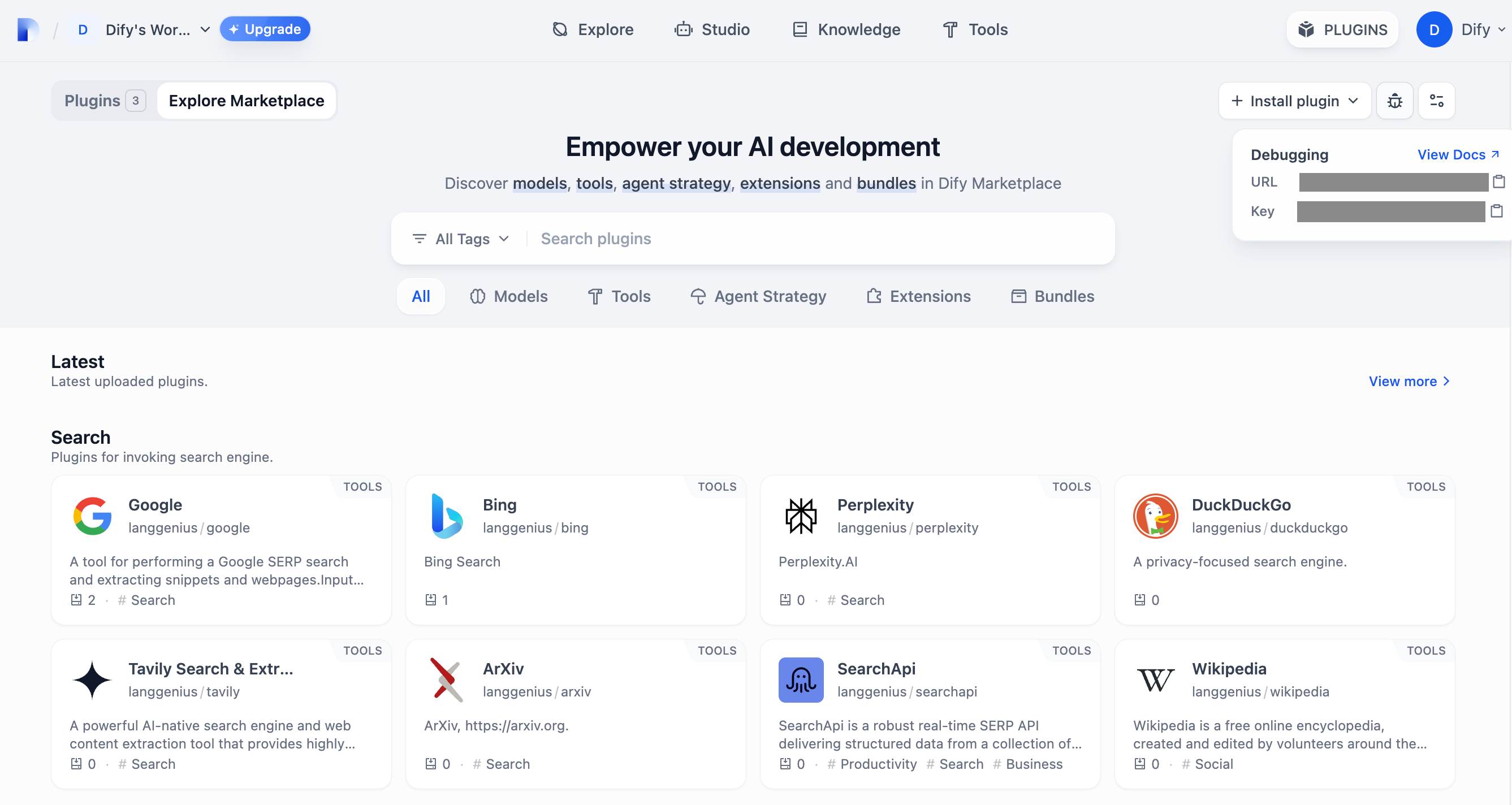
- Dify Cloud
- Self-hosted
The host is something like
debug-plugin.dify.dev:5003. The key is unique to your workspace; anyone with the key can attach a plugin, so do not share it.Step 2: Configure the Plugin’s .env
In your plugin project, copy .env.example to .env and fill in the values:
REMOTE_INSTALL_URL is the combined host:port from Step 1, not two separate variables.Step 3: Run the Plugin
From the plugin project directory:Step 4: Verify the Install
Go back to the Dify Plugins page. The plugin appears in the list, labeled with a debug marker. Other members of the workspace can also see and use it.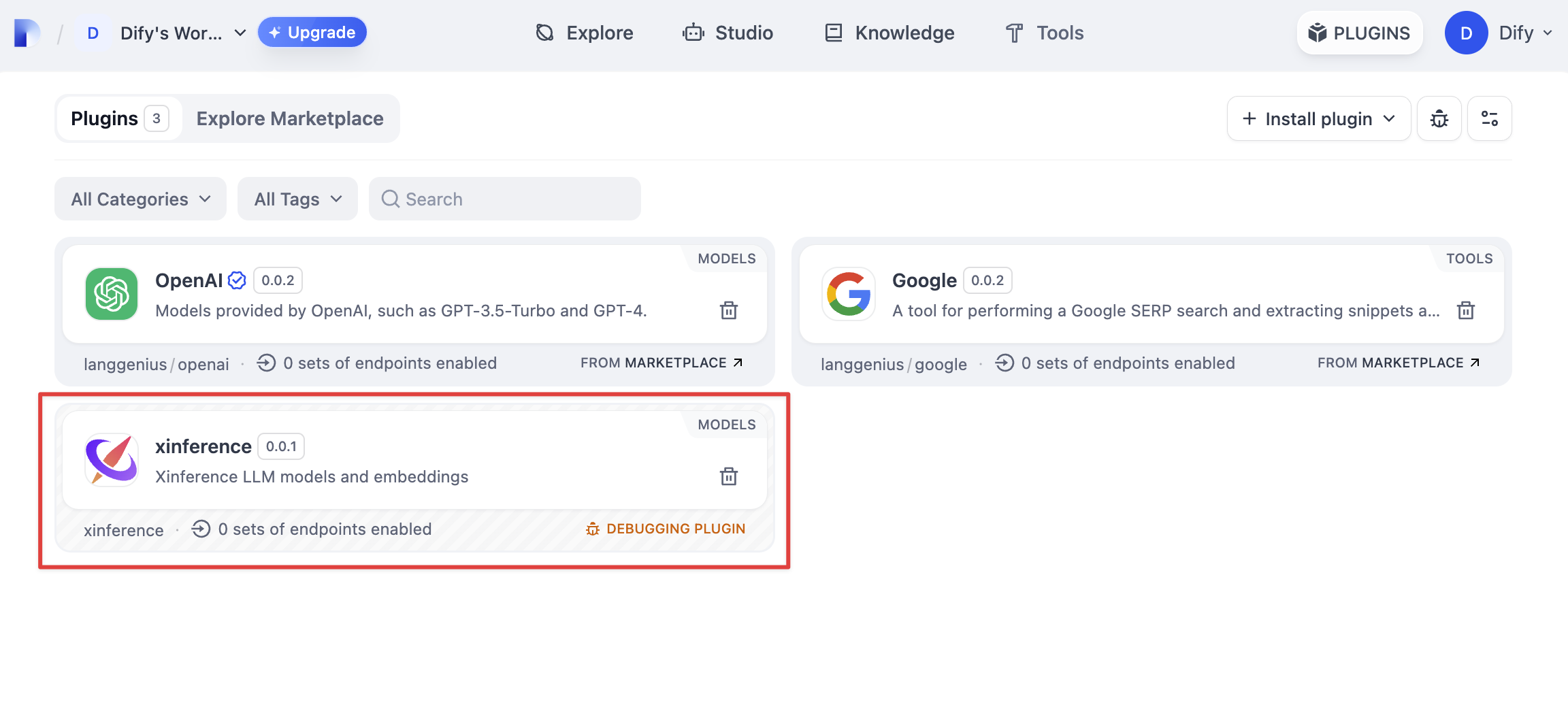
The plugin tile shows a debug indicator and your local terminal logs the first registration handshake. You’re attached.
Troubleshooting
Connection refused / cannot reach host
Connection refused / cannot reach host
The daemon is not listening on the address you put in
REMOTE_INSTALL_URL. On self-hosted setups, confirm the daemon container has PLUGIN_REMOTE_INSTALLING_ENABLED=true and that port 5003 is exposed. On cloud, double-check you copied the host:port exactly as shown in the debug dialog.Plugin starts but never appears in the Plugins list
Plugin starts but never appears in the Plugins list
The most common cause is a stale or wrong
REMOTE_INSTALL_KEY. Regenerate the key from the debug dialog and rerun python -m main. Also confirm the daemon log shows the incoming registration.`plugin_unique_identifier is not valid`
`plugin_unique_identifier is not valid`
The
author field in manifest.yaml or in provider/*.yaml doesn’t match a value the daemon accepts. Set it to your GitHub handle, then restart.Changes don't take effect
Changes don't take effect
The plugin process needs to restart after every edit; there’s no hot reload. Stop with
Ctrl+C and rerun python -m main.Related Resources
- CLI—Scaffold a plugin and set up
.env - Plugin Logging—Emit structured logs from inside your plugin
- Package as Local File and Share—Ship the plugin once debugging is done